

As a Specialist Solutions Architect at Databricks, I often hear the same questions from customers who are migrating dashboards from legacy BI tools to Databricks AI/BI Dashboards:
“What’s the Databricks equivalent of the context filters we use today?”
“Can we still do cascading filters where each dropdown only shows relevant values?”
“Do you support filter actions when I click on a bar or a point?”
“How do we do user-based filtering in AI/BI Dashboards?”
In the first blog post in this series, I focused on the first two questions and showed how to recreate:
context filters using parameters in dataset SQL, and
“Only Relevant Values” filters using field filters and query-based parameters.
In the second post, I focused on cross-filtering and drill-through interactions.
This third post tackles the remaining question: “How do we do user-based filtering in AI/BI Dashboards?”
In Databricks, these controls live in Unity Catalog, not in the dashboard itself. AI/BI Dashboards query governed tables and views, and Unity Catalog enforces fine-grained access control before the data ever reaches the dashboard. I’ll walk through how to:
Implement user-based filtering and RLS with dynamic views that use
current_user()andis_account_group_member().Apply RLS directly on tables using row filters and protect sensitive fields with column masks.
Scale these patterns across many tables and columns using ABAC tag policies and governed tags.
As in the previous posts, I’ll use the built-in samples.tpch dataset. I’ve also published the companion dashboard so you can import it into your workspace, follow along as you read, and adapt these patterns to your own Unity Catalog data.
1. How User-Based Filtering Maps to Unity Catalog
Before we dive into SQL, it’s useful to clarify where these responsibilities live in Databricks.
In many BI tools, user-specific security is often implemented close to the dashboard or semantic layer:
You define user- or group-based rules that map principals to specific regions, customers, or business units.
You may use identity-aware logic in filters or calculated fields.
You may maintain a security table that drives which slice of data each user can see.
In Databricks, these controls live in Unity Catalog, not in AI/BI Dashboards:
Object privileges on catalogs, schemas, tables, and views control whether a user can query a given object at all.
Dynamic views, row filters, and column masks implement row-level security and masking at query time. They can inspect the current user and their groups and return different rows or values per user.
AI/BI Dashboards simply query those governed tables and views. They never bypass Unity Catalog: any row filters or masks you define apply to every query, regardless of whether it comes from a notebook, Databricks SQL, or an AI/BI dashboard.
The result is conceptually similar to user-based filtering in traditional BI tools, but with one important shift: The security rules live with the data, not with a particular dashboard.
That’s especially important when:
The same Unity Catalog tables power multiple AI/BI dashboards and external BI tools, and
You embed AI/BI Dashboards into applications where thousands of users see the same dashboard definition, but each must see a different subset of data.
In the rest of this post, we’ll build up from that idea:
Use a dynamic view and a permission table to enforce RLS on a TPCH Sales dataset.
Show how to do similar things directly on tables with row filters and column masks.
Discuss how to scale those patterns across many tables and columns using ABAC tag policies and governed tags.
2. Building blocks: dynamic views, row filters, and column masks
To implement user-based filtering in Databricks, you really only need three Unity Catalog primitives: dynamic views, row filters, and column masks.
They all rely on the same core idea: At query time, Unity Catalog can look at who is running the query (and which groups they’re in), and then decide which rows and values to return.
2.1 Identity functions
The main functions you’ll use in policies are:
current_user()
Returns the current user’s identity (usually their email).is_account_group_member(’<group_name>’)
ReturnsTRUEif the current user is a member of an account-level group.
You can call these functions from views and from SQL UDFs used by row filters and column masks.
2.2 Dynamic views
A dynamic view is just a normal SQL view whose logic depends on the current user or their groups.
You can:
Filter rows based on
current_user()or group membership.Mask or null out columns for certain users.
Join to a separate permission table that maps users/groups to allowed regions, customers, etc.
Any AI/BI dataset that selects from a dynamic view automatically inherits its logic. You don’t need to add any special configuration in AI/BI itself.
We’ll use a dynamic view for our first TPCH Sales RLS example.
2.3 Row filters
A row filter attaches RLS logic directly to a table, instead of wrapping the table in a view:
You define a SQL UDF that takes one or more columns as input and returns
BOOLEAN.You attach it to a table with
ALTER TABLE ... SET ROW FILTER ... ON (column[, ...]).
The row filter runs for every query and can call current_user() and is_account_group_member() internally. This is handy when you want:
A stable table name (no extra view layer), or
A single table that’s consumed by many tools, all of which should respect the same RLS.
We’ll look at both group-based and current_user() + permission-table examples later in the post.
2.4 Column masks
A column mask is similar, but operates at the column level:
You define a SQL UDF that returns a “masked” value.
You attach it with
ALTER TABLE ... ALTER COLUMN ... SET MASK ....
This lets you:
Show full values (for example, email or salary) only to certain groups.
Show partially masked or null values to everyone else.
Think of it as the Unity Catalog side of “row-level security + column-level masking” that you might combine in legacy BI tools using data source filters and calculated fields.
Next, we’ll put these pieces together in a concrete example: enforcing region-based RLS on a TPCH Sales dataset using a combination of a base view, a permission table, and a dynamic view.
3. Implementing RLS with a dynamic view
Let’s start with a concrete scenario:
You have a TPCH Sales dashboard shared across multiple sales teams.
NA Sales Managers should see only AMERICA.
EMEA Sales Managers should see only EUROPE.
APAC Sales Managers should see only ASIA.
Individual users may have their own custom regions.
In many traditional BI tools, you’d typically solve this with a user filter or data source filter that maps groups to Regions, and a security table to keep that mapping up to date.
In Databricks, we’ll use the same logical pattern – but move it into Unity Catalog:
Create a base view for TPCH Sales in a demo schema.
Create a permission table that maps principals (groups or users) to Regions.
Create a dynamic view that joins the base view to the permission table and applies row-level security based on
current_user()andis_account_group_member().Create an AI/BI dataset on top of that dynamic view and build a simple table visualization.
Throughout this section, we’ll:
Read from
samples.tpch(which everyone has).Create objects in
main.demo_tpch(you can substitute another catalog/schema if needed).
All of the CREATE / INSERT statements in this section should be run in a notebook or SQL editor, not inside an AI/BI dataset. In AI/BI, you’ll just SELECT from the resulting view.
3.1 TPCH Sales base view
First, set up a simple demo schema and define a reusable base view for TPCH Sales:
-- Use the default UC catalog and create a demo schema
USE CATALOG main;
CREATE SCHEMA IF NOT EXISTS demo_tpch;

-- Base TPCH Sales view, reading from samples.tpch
CREATE OR REPLACE VIEW main.demo_tpch.tpch_sales_base AS
SELECT
  r.r_name              AS region,
  n.n_name              AS nation,
  c.c_custkey           AS customer_id,
  c.c_name              AS customer_name,
  o.o_orderkey          AS order_id,
  o.o_orderdate         AS order_date,
  l.l_extendedprice * (1 - l.l_discount) AS revenue
FROM samples.tpch.region   AS r
JOIN samples.tpch.nation   AS n ON n.n_regionkey = r.r_regionkey
JOIN samples.tpch.customer AS c ON c.c_nationkey = n.n_nationkey
JOIN samples.tpch.orders   AS o ON o.o_custkey   = c.c_custkey
JOIN samples.tpch.lineitem AS l ON l.l_orderkey  = o.o_orderkey;
3.2 Region access permission table
Next, create a permission table that describes who is allowed to see which Region.
-- Optional: you can keep security tables in the same schema
-- or create a separate one, e.g. main.demo_security
CREATE SCHEMA IF NOT EXISTS main.demo_tpch;

CREATE TABLE IF NOT EXISTS main.demo_tpch.tpch_region_access (
  principal_type STRING,   -- 'group' or 'user'
  principal      STRING,   -- group name or user email
  region         STRING    -- must match tpch_sales_base.region
);

INSERT INTO main.demo_tpch.tpch_region_access VALUES
  ('group', 'NA Sales Managers',        'AMERICA'),
  ('group', 'EMEA Sales Managers',      'EUROPE'),
  ('group', 'APAC Sales Managers',      'ASIA'),
  ('user',  'some.user@databricks.com', 'ASIA'),
  ('user',   current_user(),            'AFRICA');
What this does:
The first three rows grant access based on account-level groups
The fourth row grants access to ASIA to a specific user, even if they are not in one of those groups.
The fifth row uses
current_user()to grant you, the person running this SQL, access to AFRICA. When you execute theINSERT, Unity Catalog evaluatescurrent_user()to your own email.
If you’re not in any of the NA/EMEA/APAC Sales Managers groups and you’re not some.user@databricks.com, the only applicable rule for you will be the one that says you can see AFRICA. We’ll see the effect of that in a moment when we query through the dynamic view.
3.3 Dynamic view with region-level RLS
Now create a dynamic view that applies row-level security by joining the base TPCH Sales view to the permission table and checking the current user’s identity and groups:
CREATE OR REPLACE VIEW main.demo_tpch.tpch_sales_rls AS
SELECT s.*
FROM   main.demo_tpch.tpch_sales_base AS s
WHERE EXISTS (
  SELECT 1
  FROM   main.demo_tpch.tpch_region_access a
  WHERE  a.region = s.region
    AND (
      (a.principal_type = 'group'
       AND is_account_group_member(a.principal))
      OR
      (a.principal_type = 'user'
       AND a.principal = current_user())
    )
);
This view enforces RLS as follows. For each row in tpch_sales_base, it looks for a matching rule in tpch_region_access based on region and either group or user principle. If no matching rule exists for the current user and that region, the row is filtered out.
You can verify this by running:
SELECT DISTINCT region
FROM main.demo_tpch.tpch_sales_rls;
If you are only granted access via the (’user’, current_user(), ‘AFRICA’) row, you should see: AFRICA.
From now on:
Any query against
main.demo_tpch.tpch_sales_rlsreturns only the regions granted to the current user.This applies uniformly whether the query comes from a notebook, Databricks SQL, or an AI/BI Dashboard.
You can add or revoke access simply by inserting or deleting rows in
main.demo_tpch.tpch_region_access– you don’t need to change the view logic.
3.4 Using the dynamic view in an AI/BI dataset
With main.demo_tpch.tpch_sales_rls in place, using it in AI/BI Dashboards is straightforward. You don’t need to re-implement any RLS logic in AI/BI – the dataset just selects from the governed view.
Create the TPCH Sales (RLS Dynamic View) dataset:
SELECT
  region,
  nation,
  customer_id,
  customer_name,
  order_id,
  order_date,
  revenue
FROM main.demo_tpch.tpch_sales_rls;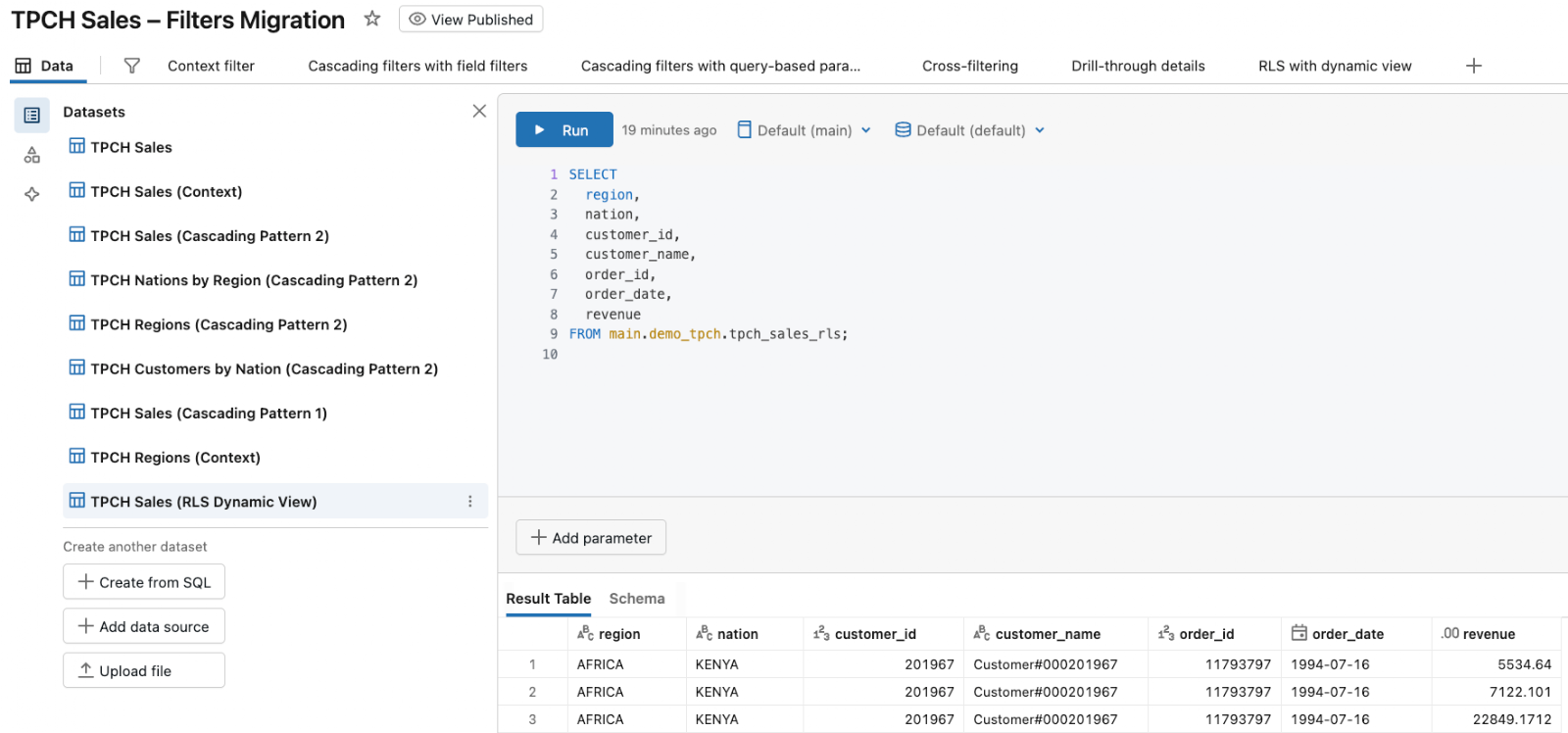
Build a simple dashboard page to visualize the dataset. In the companion dashboard, I created a RLS with dynamic view page based on this dataset:
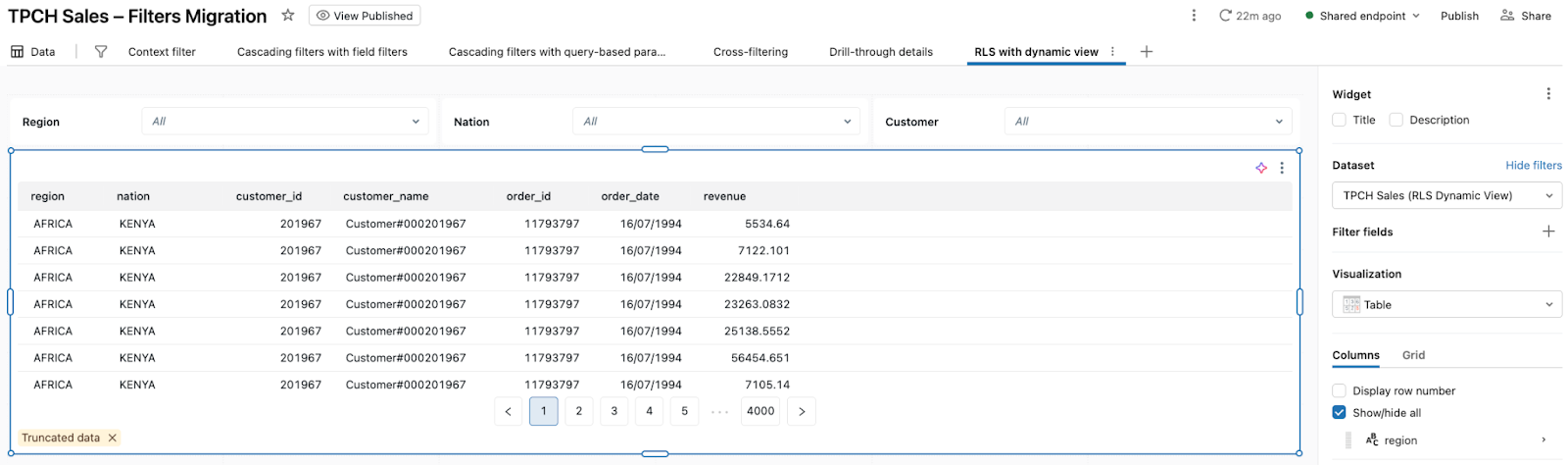
When you view this page, if your only grant is the row we inserted with (’user’, current_user(), ‘AFRICA’), the table will show only rows where the region is AFRICA.
The security logic lives in Unity Catalog (dynamic view + permission table). The dashboard just selects from tpch_sales_rls and automatically respects row-level security for each viewer.
4. Implementing RLS on tables with row filters and column masks
In the previous section, we implemented row-level security for TPCH Sales using a dynamic view and a permission table. That pattern works well when you want a named, shareable view to point AI/BI datasets at.
Unity Catalog also lets you attach RLS and masking logic directly to tables using:
Row filters – control which rows a user can access in a table.
Column masks – control what values they see in specific columns.
These policies are evaluated in Unity Catalog at query time and apply to all compute – SQL warehouses, notebooks, and AI/BI Dashboards. Unlike dynamic views, they keep the table name unchanged, which can be important when the same table is shared across many tools.
In this section, we’ll:
Create a TPCH Sales table in
main.demo_tpchfor row filters and masks.Attach a group-based row filter that restricts Regions.
Attach a user-based row filter that uses
current_user()and a permission table.Add a column mask to protect a sensitive column.
Any AI/BI dataset that selects from this table will automatically respect these policies. You don’t need to configure anything special in AI/BI.
All of the statements below should be run in a notebook or SQL editor. AI/BI Dashboards just query the resulting table.
4.1 TPCH Sales table for filters and masks
Row filters and column masks only apply to tables (and a few other relation types), not to views. To keep things simple, we’ll materialize the tpch_sales_base view from Section 3 into a Delta table that we can attach policies to:
-- Use the same demo catalog and schema as before
USE CATALOG main;
USE SCHEMA demo_tpch;

-- Create a physical table from the base view for row filters and masks
CREATE OR REPLACE TABLE main.demo_tpch.tpch_sales_table AS
SELECT *
FROM main.demo_tpch.tpch_sales_base;
From now on, we’ll attach row filters and masks to main.demo_tpch.tpch_sales_table.
If you point an AI/BI dataset at this table instead of the dynamic view, the behavior will be controlled by these table-level policies.
4.2 Group-based row filter on Region
First, let’s attach a row filter that enforces the same Region rules we used in the dynamic view, but purely based on account-level groups:
-- Row filter function that decides which regions each group can see
CREATE OR REPLACE FUNCTION main.demo_tpch.tpch_region_filter(p_region STRING)
RETURNS BOOLEAN
RETURN
  CASE
    WHEN is_account_group_member('NA Sales Managers')   THEN p_region = 'AMERICA'
    WHEN is_account_group_member('EMEA Sales Managers') THEN p_region = 'EUROPE'
    WHEN is_account_group_member('APAC Sales Managers') THEN p_region = 'ASIA'
    ELSE FALSE
  END;
Attach it to the table:
ALTER TABLE main.demo_tpch.tpch_sales_table
  SET ROW FILTER main.demo_tpch.tpch_region_filter ON (region);
Effect:
Whenever anyone queries
main.demo_tpch.tpch_sales_table, Unity Catalog evaluatestpch_region_filter(region)for each row.If the user is in NA Sales Managers, only rows where the region is AMERICA are returned. If they’re in EMEA Sales Managers, they only see EUROPE; APAC Sales Managers see ASIA.
Users not in any of these groups see no rows from this table.
If you point a dataset at:
SELECT
  region,
  nation,
  customer_id,
  customer_name,
  order_id,
  order_date,
  revenue
FROM main.demo_tpch.tpch_sales_table;
Any visualizations based on such a dataset will now respect the group-based Region logic without going through the dynamic view.
4.3 User-based row filter with current_user() and a permission table
Group-based rules are great for broad roles, but you may need finer control – different users seeing different subsets of customers, accounts, or regions.
We can reuse the same pattern as in Section 3 – current_user() + a permission table – but this time embed it in a row filter function instead of a dynamic view.
Example: restrict access by customer_id:
-- Permission table mapping users to customers they can see
CREATE TABLE IF NOT EXISTS main.demo_tpch.customer_access (
  user_email  STRING,
  customer_id BIGINT
);

-- Example grants
INSERT INTO main.demo_tpch.customer_access VALUES
  ('some.user@databricks.com', 889),
  (current_user(),             1111);  -- Give yourself access
Now create a row filter function that consults this table. To avoid ambiguous name resolution with the customer_id column on the table, we’ll use a parameter name p_customer_id:
CREATE OR REPLACE FUNCTION main.demo_tpch.tpch_customer_filter(p_customer_id BIGINT)
RETURNS BOOLEAN
RETURN EXISTS (
  SELECT 1
  FROM   main.demo_tpch.customer_access a
  WHERE  a.user_email  = current_user()
    AND  a.customer_id = p_customer_id
);
Attach it to the same table. Because a table can have only one row filter, we’ll replace the Region filter from the previous subsection in this example:
ALTER TABLE main.demo_tpch.tpch_sales_table
  DROP ROW FILTER;

ALTER TABLE main.demo_tpch.tpch_sales_table
  SET ROW FILTER main.demo_tpch.tpch_customer_filter ON (customer_id);
Effect:
Whenever someone queries
main.demo_tpch.tpch_sales_table, Unity Catalog evaluatestpch_customer_filter(customer_id)for each row.For a given user, only rows whose
customer_idappears inmain.demo_tpch.customer_access
forcurrent_user()are returned.In the sample data above, you will only see orders for customer
1111, whilesome.user@databricks.comwill see orders for customer889.
You can verify this quickly:
SELECT DISTINCT customer_id
FROM main.demo_tpch.tpch_sales_table
ORDER BY customer_id
LIMIT 20;
If your only mapping is (current_user(), 1111), this query should return just 1111.
To use this in AI/BI Dashboards, you can point a dataset directly at the table:
SELECT
  region,
  nation,
  customer_id,
  customer_name,
  order_id,
  order_date,
  revenue
FROM main.demo_tpch.tpch_sales_table;
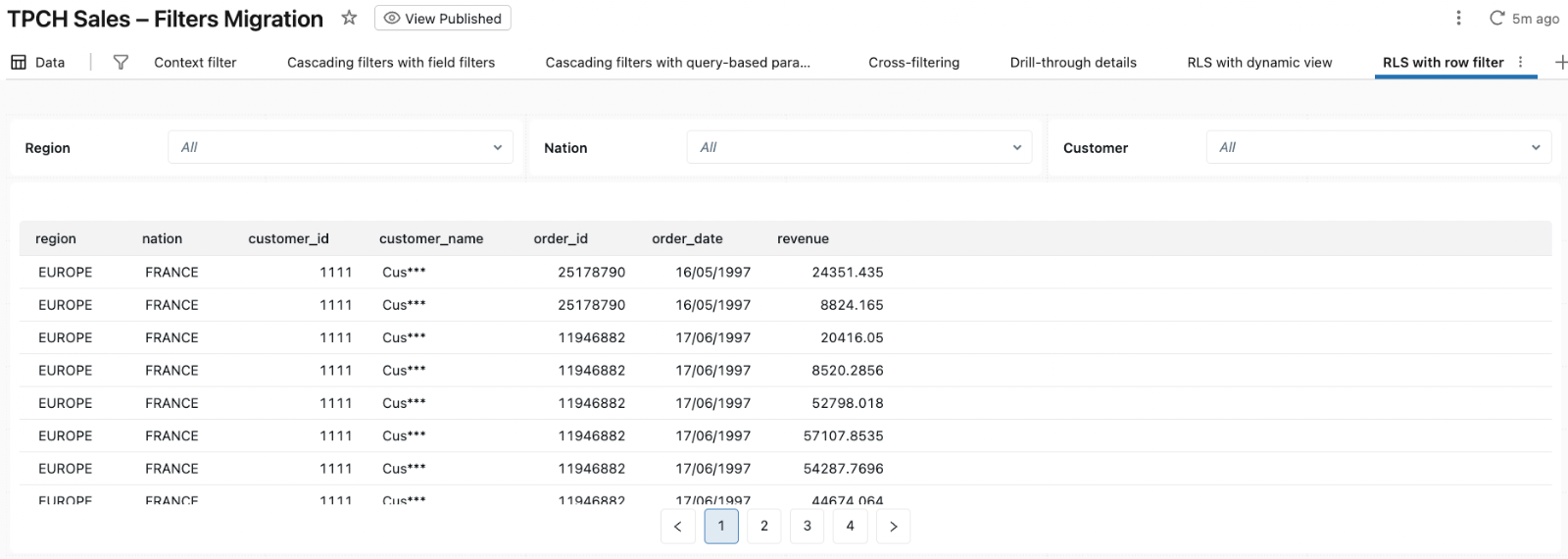
In the companion dashboard, I created a RLS with row filter page based on this dataset:
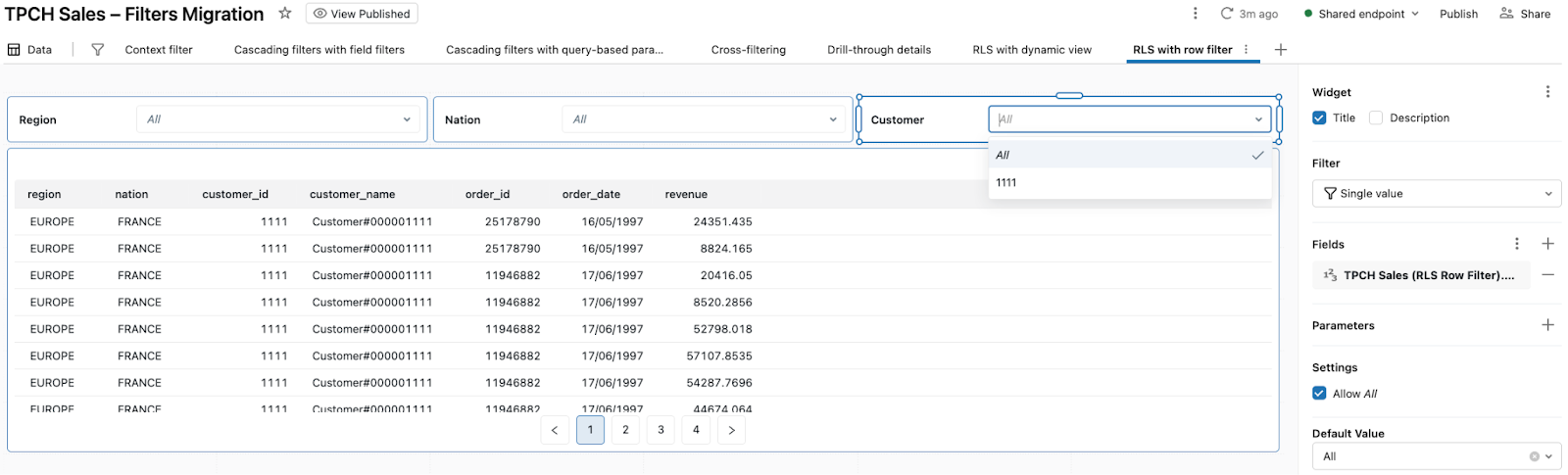
When you open it, the table and visuals only show data for customers you are allowed to see according to customer_access, without any RLS logic in the dashboard itself.
4.4 Bonus: masking sensitive columns with a column mask
Row filters decide which rows a user can see. Sometimes you also need to partially hide sensitive values within those rows – for example, masking customer names, emails or phone numbers for most users while leaving them fully visible for a small group.
Unity Catalog column masks handle this at the column level using the same pattern: a SQL UDF that can branch on current_user() or group membership.
Suppose we want:
Users in a PII Full Access group to see full customer names.
Everyone else to see a partially masked version (for example, just the first few characters).
First, define a masking function:
CREATE OR REPLACE FUNCTION main.demo_tpch.mask_customer_name(name STRING)
RETURNS STRING
RETURN
  CASE
    WHEN is_account_group_member('PII Full Access') THEN name
    ELSE concat(substr(name, 1, 3), '***')
  END;
Attach it as a mask on the table:
ALTER TABLE main.demo_tpch.tpch_sales_table
  ALTER COLUMN customer_name
  SET MASK main.demo_tpch.mask_customer_name;
Effect:
Users in the PII Full Access group see the full
customer_namevalue.All other users see a masked version like
Cus***instead ofCustomer#000001111.The mask is enforced for every query against
tpch_sales_table– notebooks, SQL editor, and AI/BI Dashboards – including exports.
Here is what it looks like in the companion dashboard:
5. Scaling RLS with ABAC and governed tags
Everything we’ve done so far (dynamic views, row filters, and column masks) is defined directly on individual Unity Catalog objects. That’s fine for a handful of tables, but it becomes hard to manage when you have dozens of catalogs, hundreds of schemas, and thousands of tables. This is exactly the problem that attribute-based access control (ABAC) with governed tags is designed to solve in Unity Catalog.
At a high level, ABAC adds three building blocks on top of the mechanisms we already used:
Governed tags – account-level tags like sensitivity, business_domain, or region_scope, with a controlled set of allowed values. You attach these tags to catalogs, schemas, tables, or columns.
Policy UDFs – reusable SQL UDFs that implement row-filter or column-mask logic, similar to the functions we wrote earlier, but intended to be reused across many datasets.
ABAC policies – centrally managed policies that say “when a tagged object matches these conditions, apply this row filter or column mask for these principals.” Policies can be attached at the catalog, schema, or table level and inherit down the hierarchy.
Databricks recommends using ABAC as the primary way to apply row filters and column masks at scale, and reserving table-by-table configuration for special cases. Conceptually, you can think of ABAC as “lifting” the patterns from Section 4 into a central policy layer:
Tag the data once – apply governed tags to catalogs, schemas, tables, and columns that participate in RLS or masking.
Register reusable UDFs – define shared row-filter and mask functions in a governance schema (for example,
governance.region_filter()andgovernance.mask_customer_name()).Create ABAC policies – define policies that attach those UDFs to tagged objects based on tag conditions and target groups.
Let tags drive behavior – as new tables and columns are tagged, the appropriate row filters and masks are applied automatically by Unity Catalog.
From an AI/BI Dashboards perspective, the experience is the same as in Sections 3 and 4: the dataset SQL stays simple, and the dashboard filters and visualizations work as usual. The difference is that the security logic is now centralized in ABAC policies and tags instead of being embedded directly into each table or view.
6. Summary and next steps
In many BI tools, user-based filtering and row-level security are often implemented close to the dashboard or semantic layer using user/group mappings, security tables, and identity-aware logic. In Databricks, the key shift is that these controls move into Unity Catalog, and AI/BI Dashboards simply query governed tables and views.
In this post, we walked through three main patterns:
Dynamic views and permission tables (Section 3)
We builtmain.demo_tpch.tpch_sales_rlson top of a base TPCH Sales view and atpch_region_accesstable. The dynamic view usescurrent_user()andis_account_group_member()to return different Regions for different users and groups. AI/BI datasets that query this view automatically inherit the row-level security.Table-level row filters and column masks (Section 4)
We materialized TPCH Sales intomain.demo_tpch.tpch_sales_tableand attached a row filter that looks up allowedcustomer_idvalues incustomer_accessbased oncurrent_user(). We also added a column mask forcustomer_name, showing full names only to a privileged group. Any dataset that selects from this table sees the combined effect of RLS and masking without any extra logic in the dashboard.ABAC and governed tags (Section 5)
We then zoomed out to show how ABAC can apply the same kinds of row filters and masks at scale, using governed tags, reusable policy UDFs, and central ABAC policies. Instead of configuring each table or view by hand, you tag data once and let policies attach the right filters and masks automatically.
Across all three patterns, the core idea is the same: AI/BI Dashboards stay simple; Unity Catalog enforces who sees which rows and what values.
The companion dashboard brings these ideas together in a concrete, runnable example. If you import it into your workspace and wire it up to the views and tables from this post, you can see exactly how the visuals behave for different users as Unity Catalog applies dynamic views, row filters, and column masks behind the scenes.
Combined with the first two posts in this series (Part 1 and Part 2), you now have a practical set of patterns for implementing filtering, drill-through, and row-level security in Databricks AI/BI Dashboards on top of Unity Catalog.