


Integrate Databricks Genie with Google Chat in 30 mins!
With this integration, your team can query business data directly from Google Chat using natural language. No SQL knowledge needed, no switching between tools.
Features
Conversational AI in Google Chat - Ask questions like “What were total sales last quarter?” and get instant, data-backed answers
Rich Card Responses - Results are displayed as formatted Google Chat Cards with data tables, generated SQL
Response Feedback Loop - Thumbs up/down buttons send ratings back to Genie so space authors can review and improve
Direct Messages and @Mentions - Works in 1:1 DMs with the bot or by @mentioning it in any Chat Space
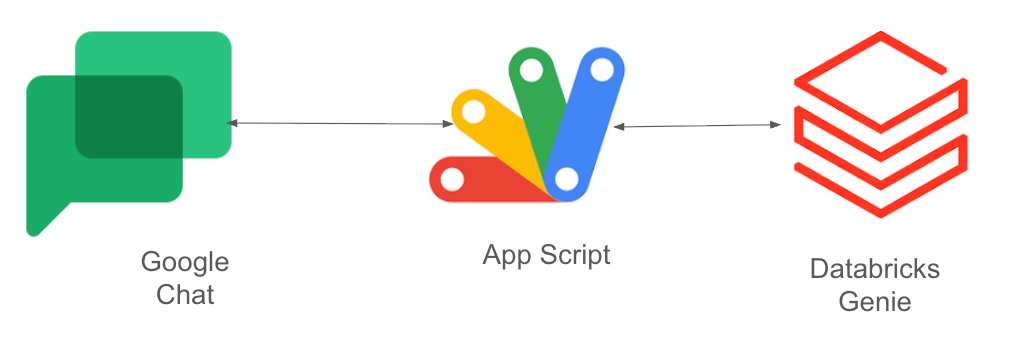
No Infrastructure Required - Runs entirely on Google Apps Script (serverless), no servers to manage, no Databricks App to deploy
Secure by Default - Credentials stored in Apps Script Properties Service, data governed by Unity Catalog
Architecture
Prerequisites
Databricks Workspace
Active Databricks workspace
Genie space ID
Google Workspace with the Enterprise plan
Enable Google Chat API in the project
Enable App Script in the same project
Setup Instructions
Set up Genie Space in Databricks Workspace and note the few parameters
Genie Details
If you already have a Genie Space, skip to the next step. Otherwise:
In your Databricks workspace, navigate to Genie in the left sidebar
Click New in the upper-right corner of the screen
Add your data sources. Then, click Create
From the Settings tab, note the Space ID (a 32-character string) -- you will need this later
Tip: The quality of your Genie Space directly affects the quality of your answers. Add company-specific context, test with expected user questions, and iterate on your table annotations.
Generate a Databricks Token
Apps Script needs a token to authenticate with the Genie API.
In your Databricks workspace, click your username (top right) then Settings
Go to Developer then Access Tokens
Click Generate New Token, give it a description like “Google Chat Genie Bot”
Copy the token immediately -- you will not see it again
Also note your workspace URL (e.g., https://your-instance.cloud.databricks.com).
For production: Use OAuth M2M with a service principal instead of a personal access token for better security and automated token rotation.
Google Workspace Setup
Google Cloud Project Setup
Go to the Google Cloud Console (console.cloud.google.com)
Create a new project (or select an existing one)
Navigate to APIs and Services then Library
Search for Google Chat API and click Enable
Go to APIs and Services then OAuth consent screen
Select Internal, fill in the app name (e.g., “Genie Data Bot”), and save
Create the Apps Script Project
Go to script.google.com and click New project
Rename the project to Genie Chat Bot
Download all files from the repo https://github.com/adgitdemo/ad_databricks/tree/main/genie-google-chat-app and create the corresponding .gs files in the Apps Script editor:
Code.gs -- Chat event handlers (onMessage, onAddedToSpace, submitFeedback)
appscript.json - App Script configuration
(Recommended) Go to Project Settings (gear icon) then under the “Script Properties“ section, click Add script property (or Edit script properties):
DATABRICKS_TOKEN = your token from Step 1
GENIE_SPACE_ID = your space ID from Step 1
DATABRICKS_HOST = your workspace URL (no trailing slash)
The code reads from Script Properties automatically.
Configure the Google Chat API
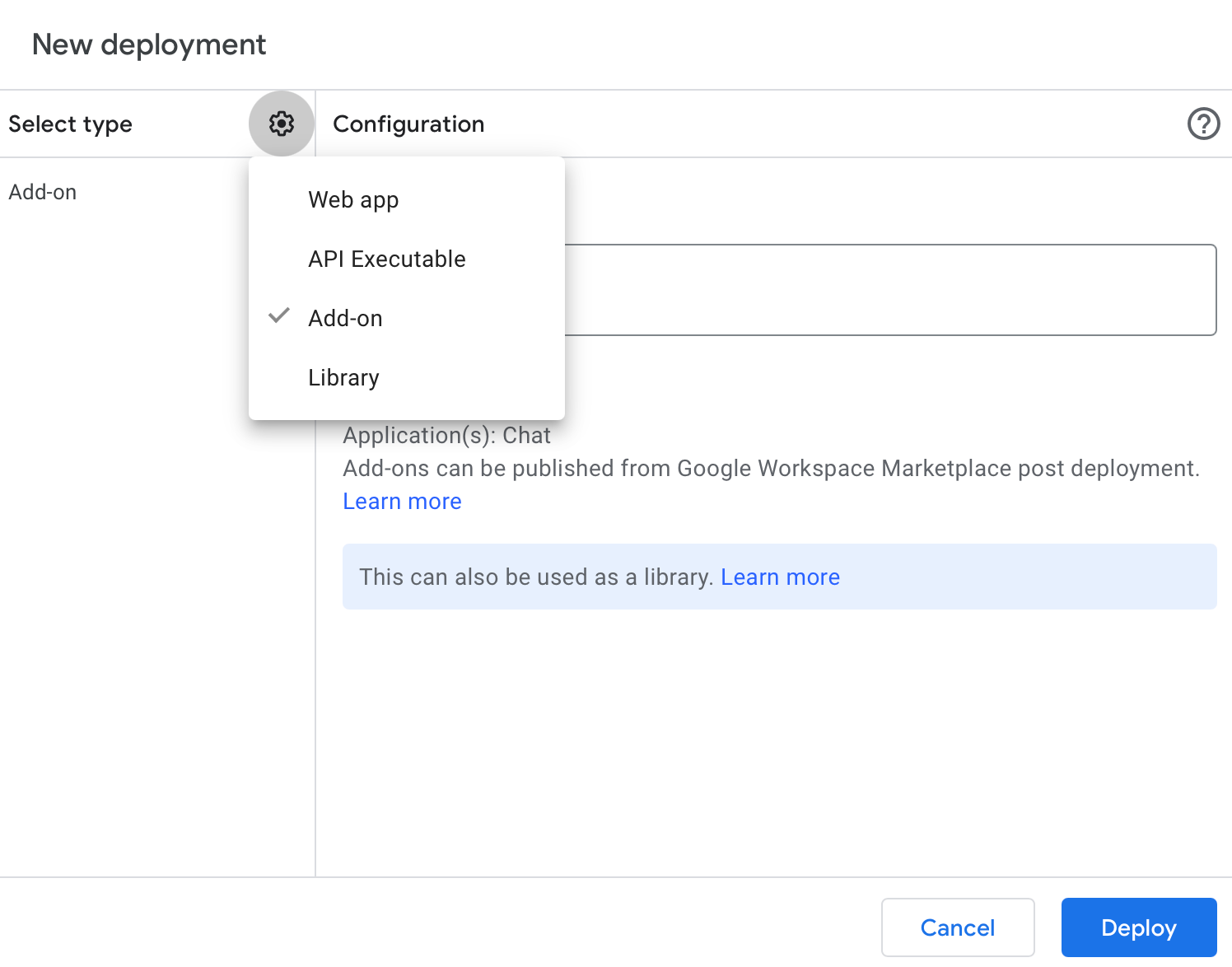
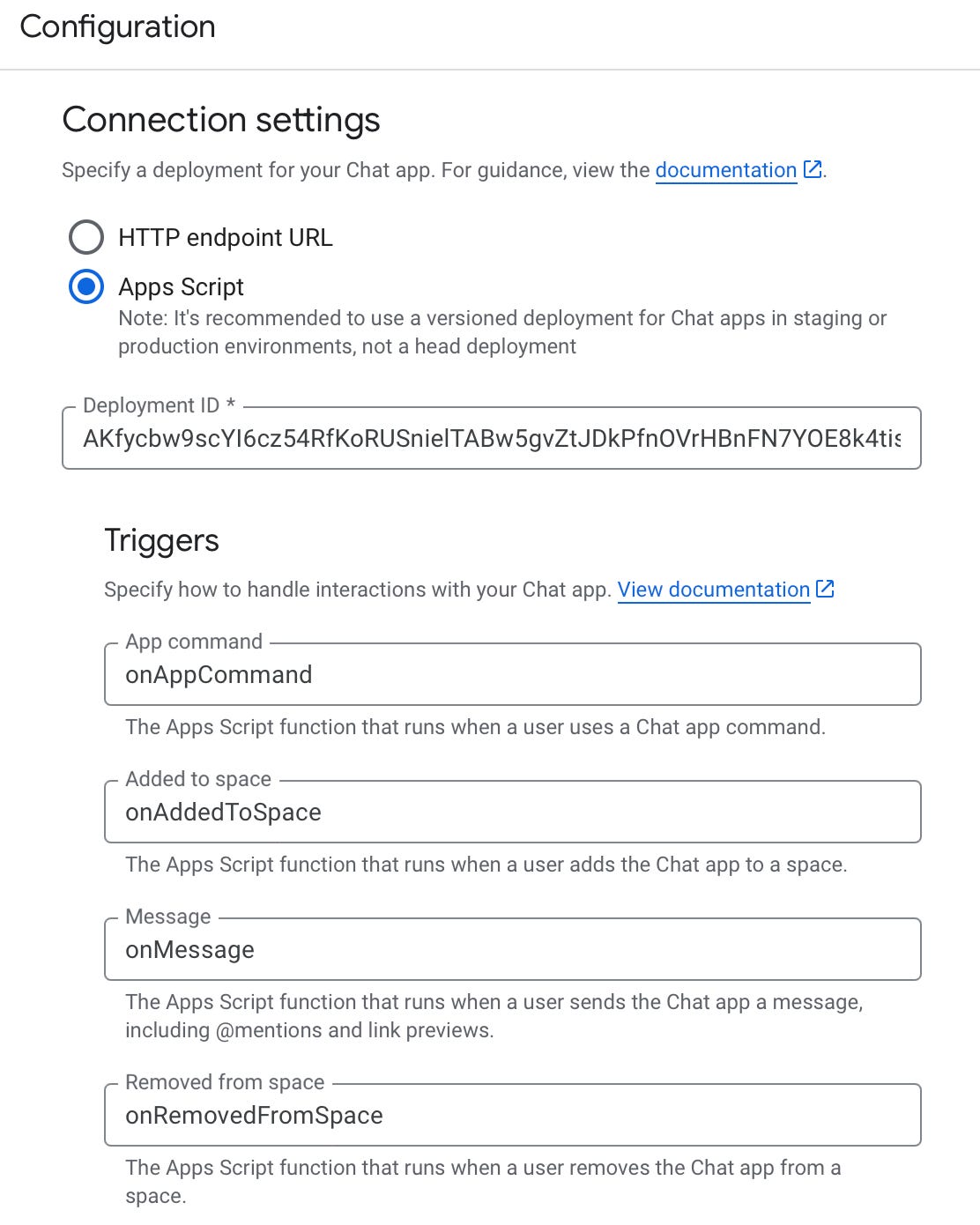
In Apps Script, click Deploy->New Deployment, select Add-On configuration, and deploy. Copy the Deployment ID once process completed.
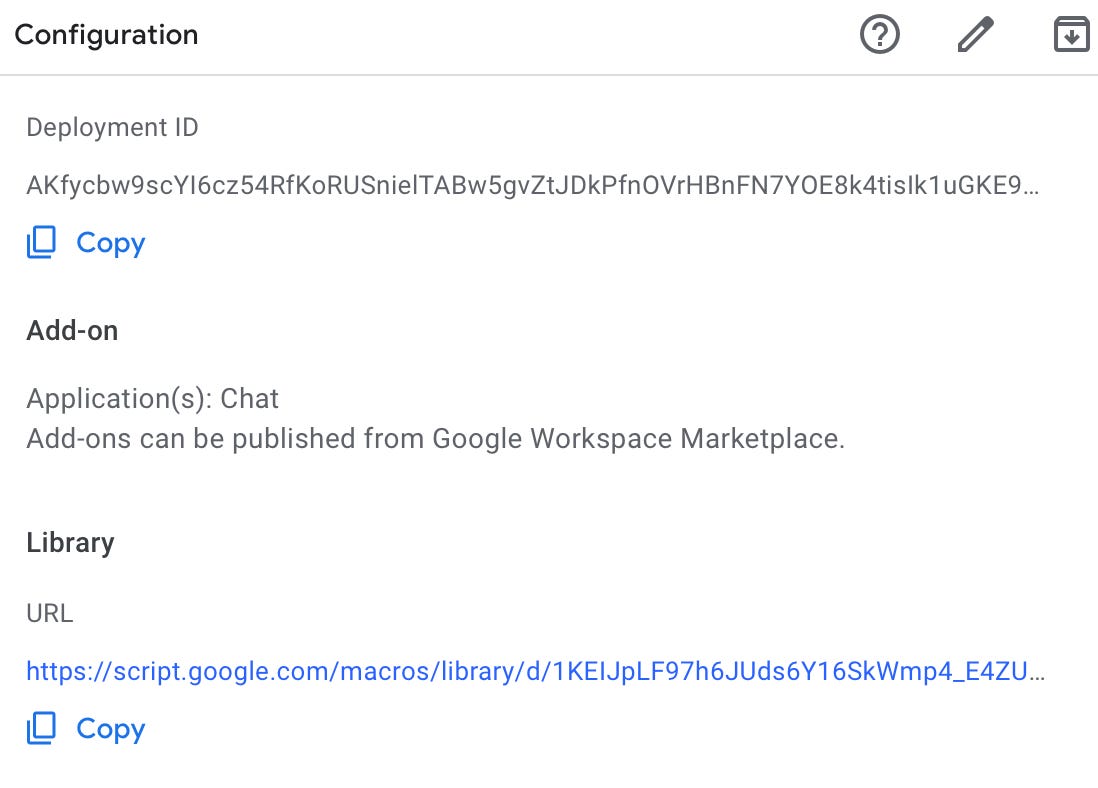
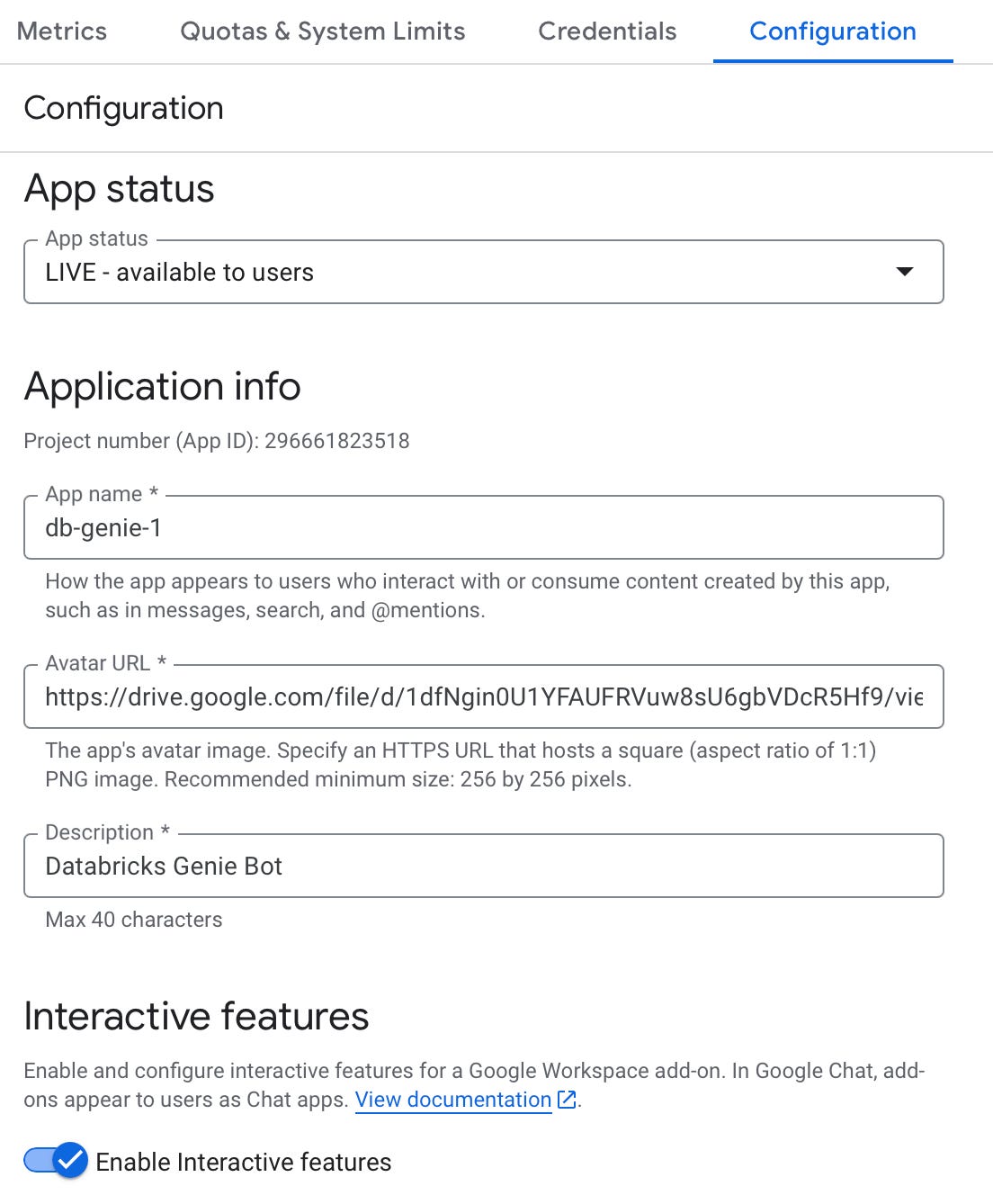
Back in the Google Cloud Console, go to APIs and Services then Google Chat API then Configuration
Fill in:
- App name: db-genie-1
- Avatar URL: (optional -- your company logo or Databricks icon)
- Description: Databricks Genie Bot
- Functionality: Check “Join spaces and group conversations”
- Connection settings: Select Apps Script and paste your Head Deployment ID in the Deployment ID field
- Triggers specify the apps script functions to handle interactions
- Visibility: Select “Specific people and groups” and add your team or test users
Add Chat App/Bot App to Google Chat
1. Open the Space
Go into the Space where you want the app.
2. Click the Space name at the top
A menu opens.
3. Choose “Manage apps”
Then click Add apps.
4. Search + Add the app

Usage
Once deployed, your team can interact with the bot in two ways:
Direct Messages -- Open a DM with Genie Data Bot and type your question directly. Great for ad-hoc data exploration.
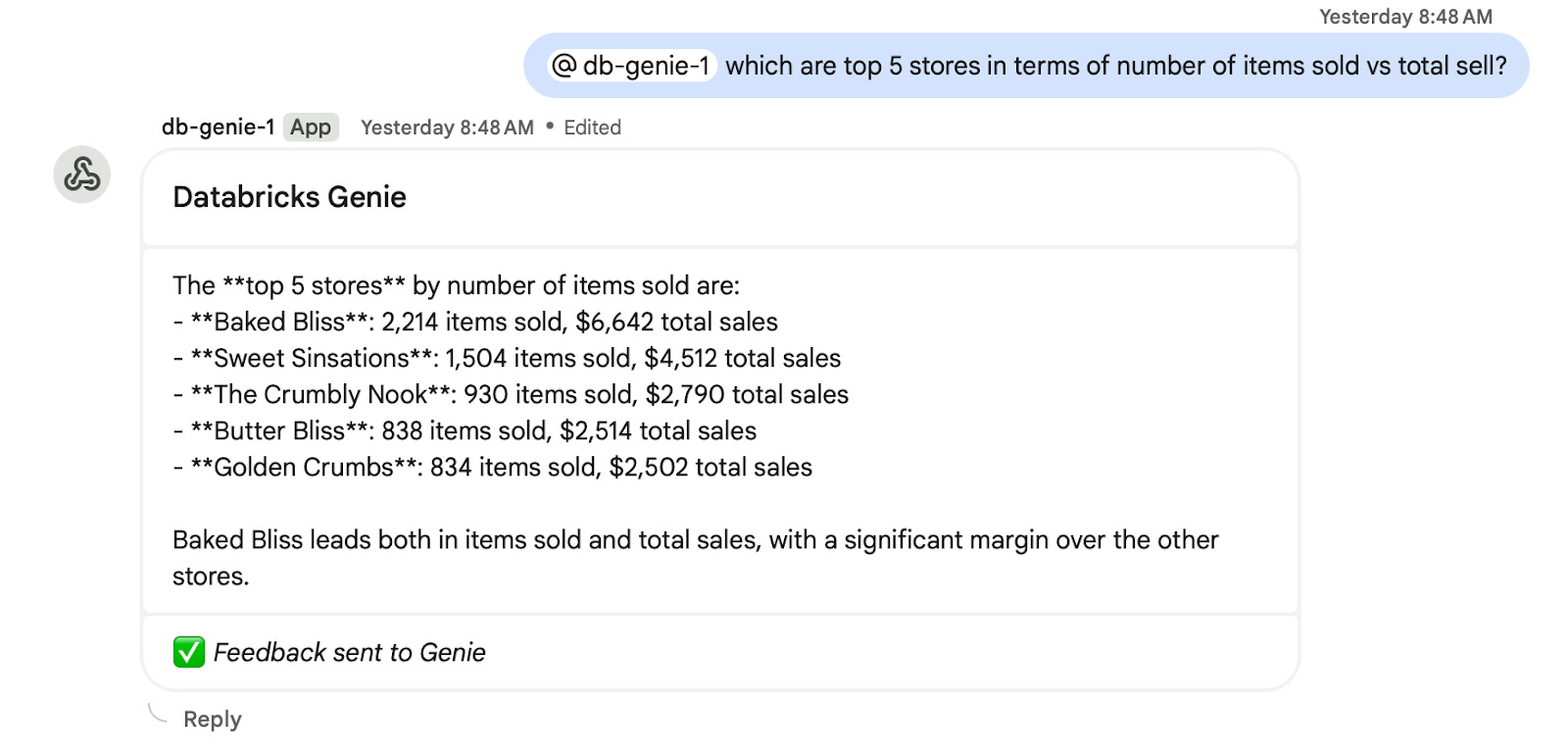
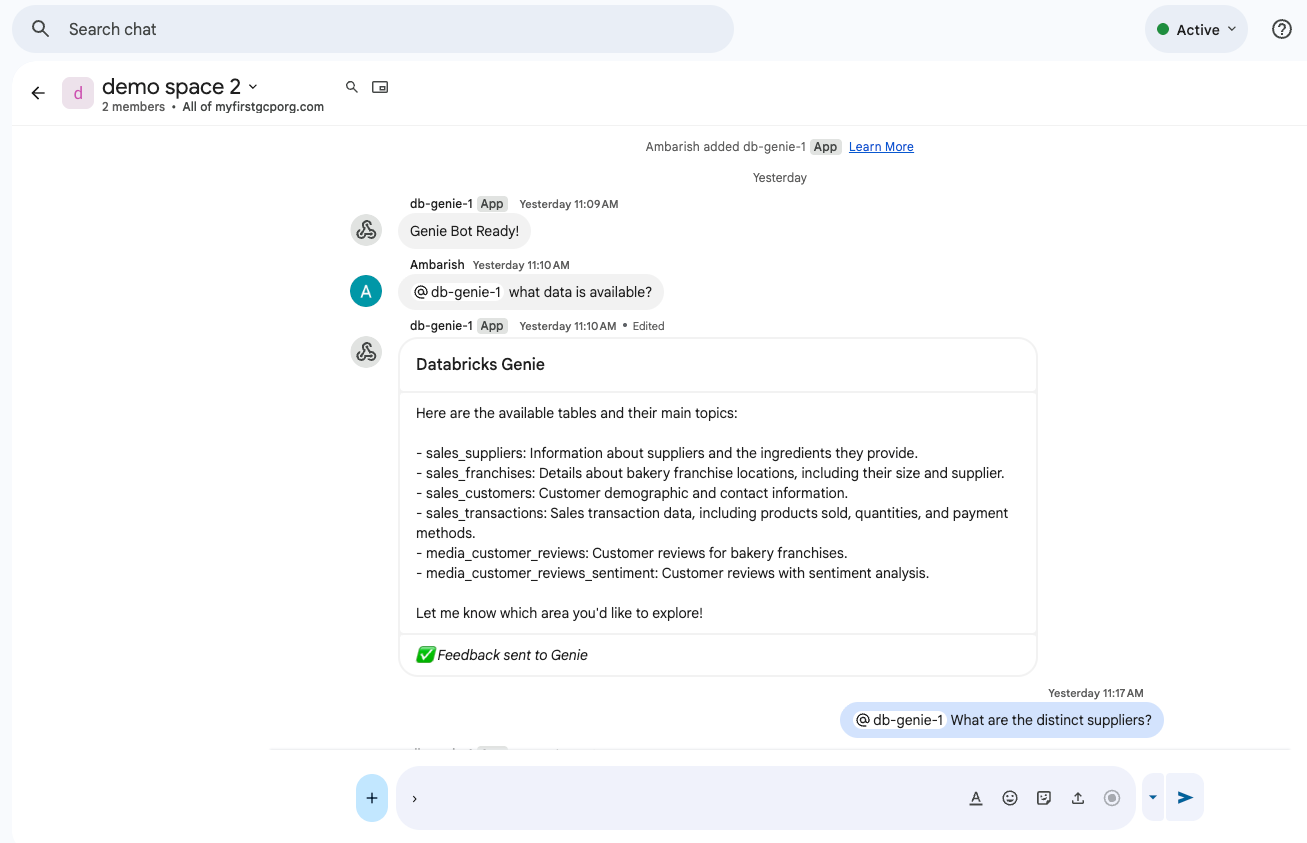
@Mentions in Spaces -- In any Google Chat Space where the bot is added, type @db-genie-1 followed by your question. Responses appear in the space, and anyone can ask follow-ups in the thread.
Demo Time
Tips and Considerations
Answer quality depends on your Genie Space. Add detailed table/column descriptions, sample SQL, and company-specific context for best results.
Sync timeout: Apps Script has a 30-second synchronous response limit for Chat. If your Genie queries take longer, consider an optional async pattern using time-driven triggers and the Advanced Chat Service.
Rate limits: The Genie API allows approximately 5 queries per minute per workspace during Public Preview.
Row limits: Genie returns up to 5,000 rows per query. The Chat card displays up to 20 rows for readability, with a link to view full results in Genie.